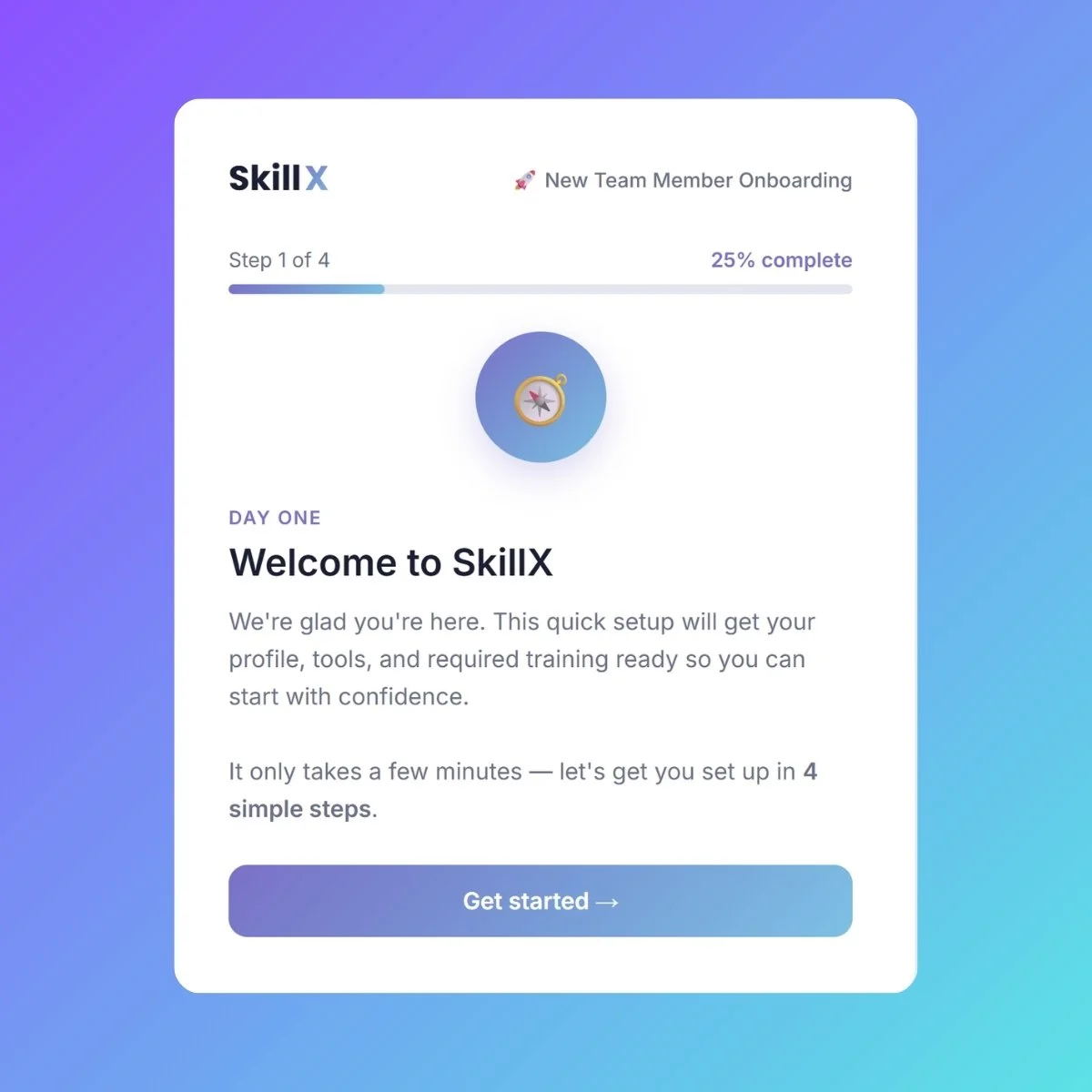
Onboarding people into SkillX, from day one to fully trained
An SMB training platform, built end-to-end through a working, accessible onboarding prototype.
ROLE
UX + Instructional Design
FOCUS
Onboarding, WCAG 2.2
TOOLS
Claude AI, HTML/CSS/JS
The setup
The problem it solves
Small and mid-size companies have training that matters just as much as any enterprise's, culture, guidelines, role competencies, but rarely the tooling to deliver it well. Generic course platforms weren't built for that.
Before any screen got designed, three questions shaped everything that followed.
Who it's for
New hires at small and mid-size companies navigating their first days, and the teams responsible for making sure company-specific training actually lands, not just gets clicked through.
Curious how it works?
The prototype is fully interactive, try the flow yourself.
Key design decisions
A few of the choices that shaped the experience, and why they mattered.
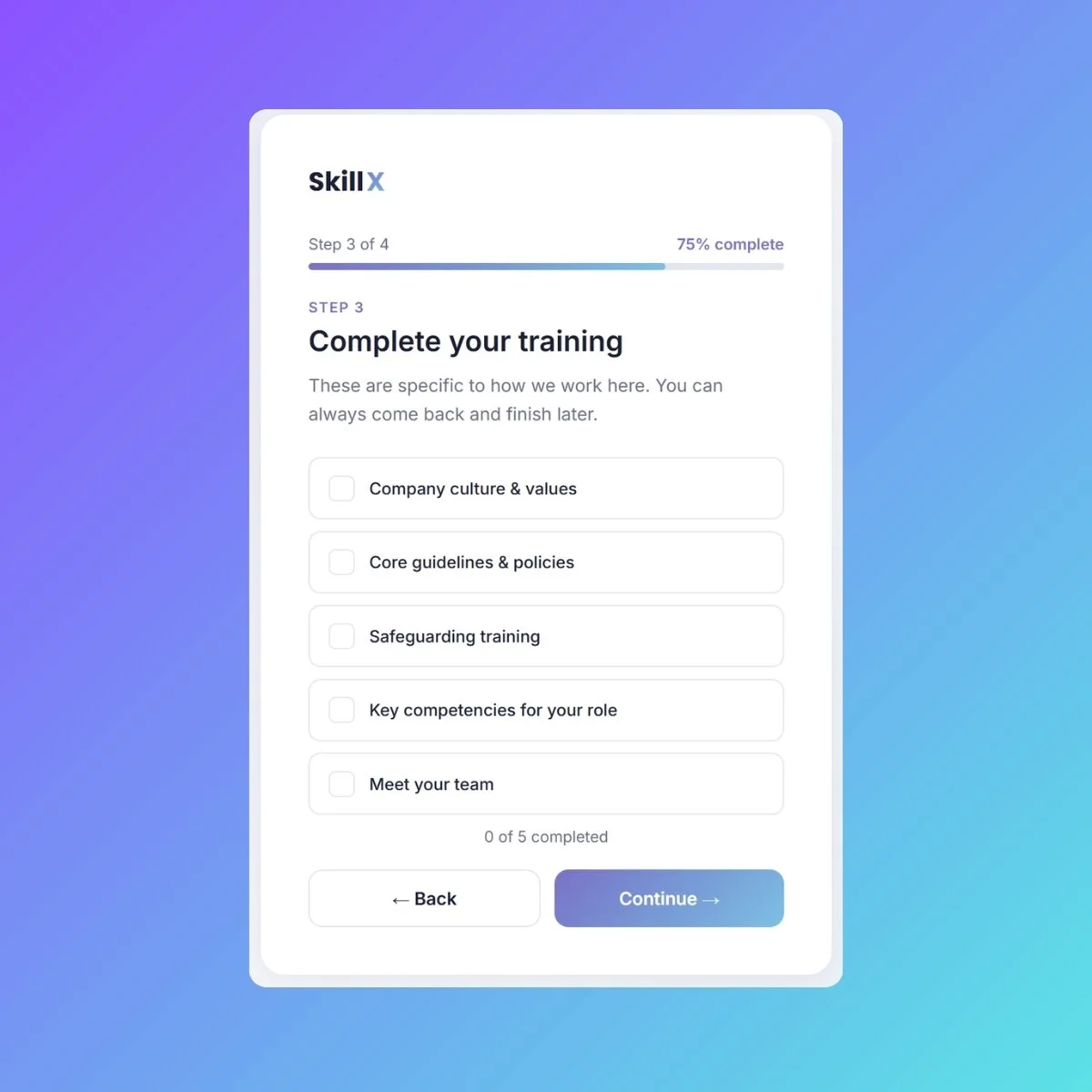
Step 3 doesn't ask new hires to set up email or download an app, the usual IT-onboarding defaults. It walks them through what SkillX itself is meant to deliver: company culture, guidelines, safeguarding, and role competencies. The onboarding flow demonstrates the product it's selling.
Making training specific, not generic
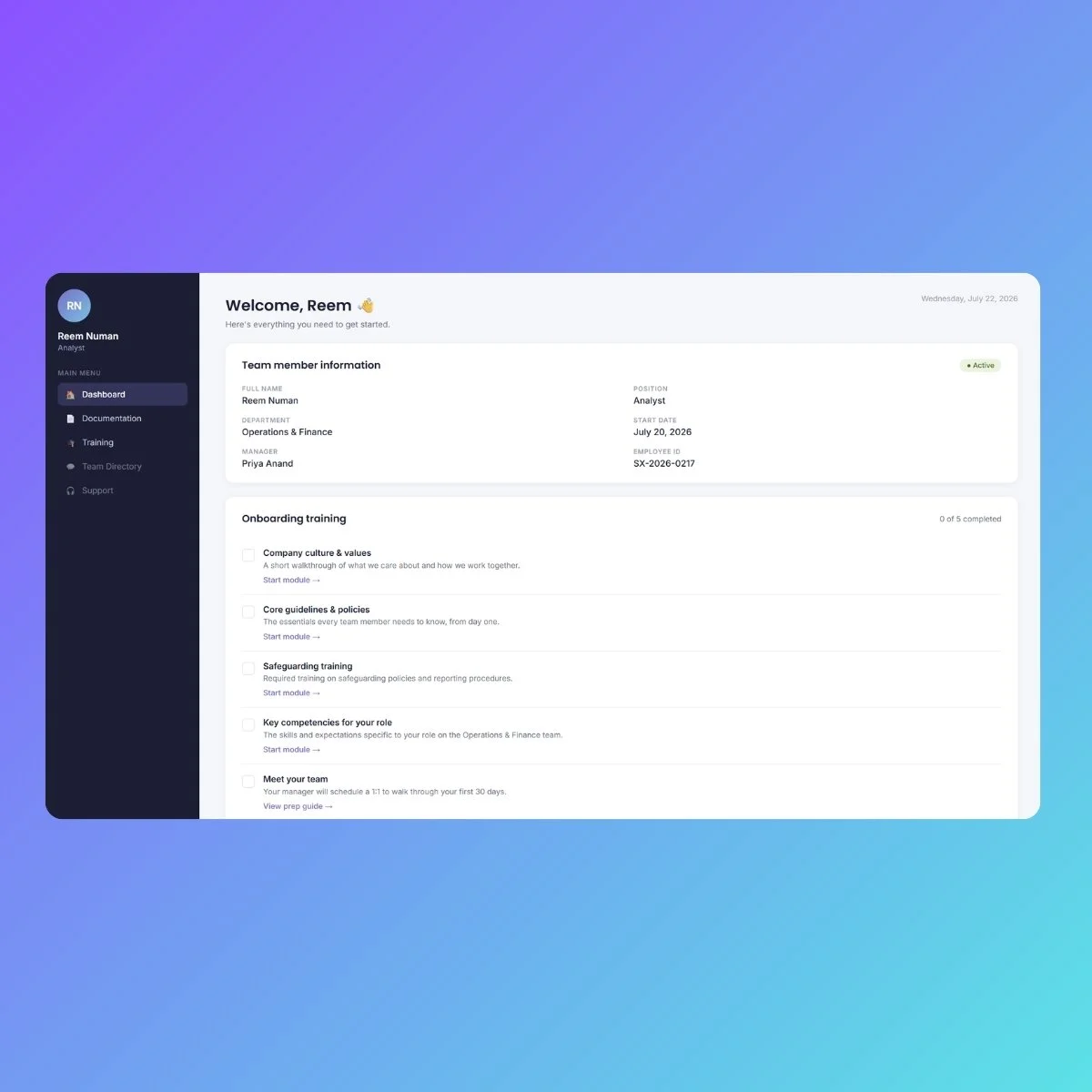
Everything confirmed during the wizard, name, role, department, training progress, reappears on the dashboard afterward. Nothing gets asked twice, and nothing disappears once onboarding ends. The dashboard is where the training relationship actually continues.
Progress that carries over
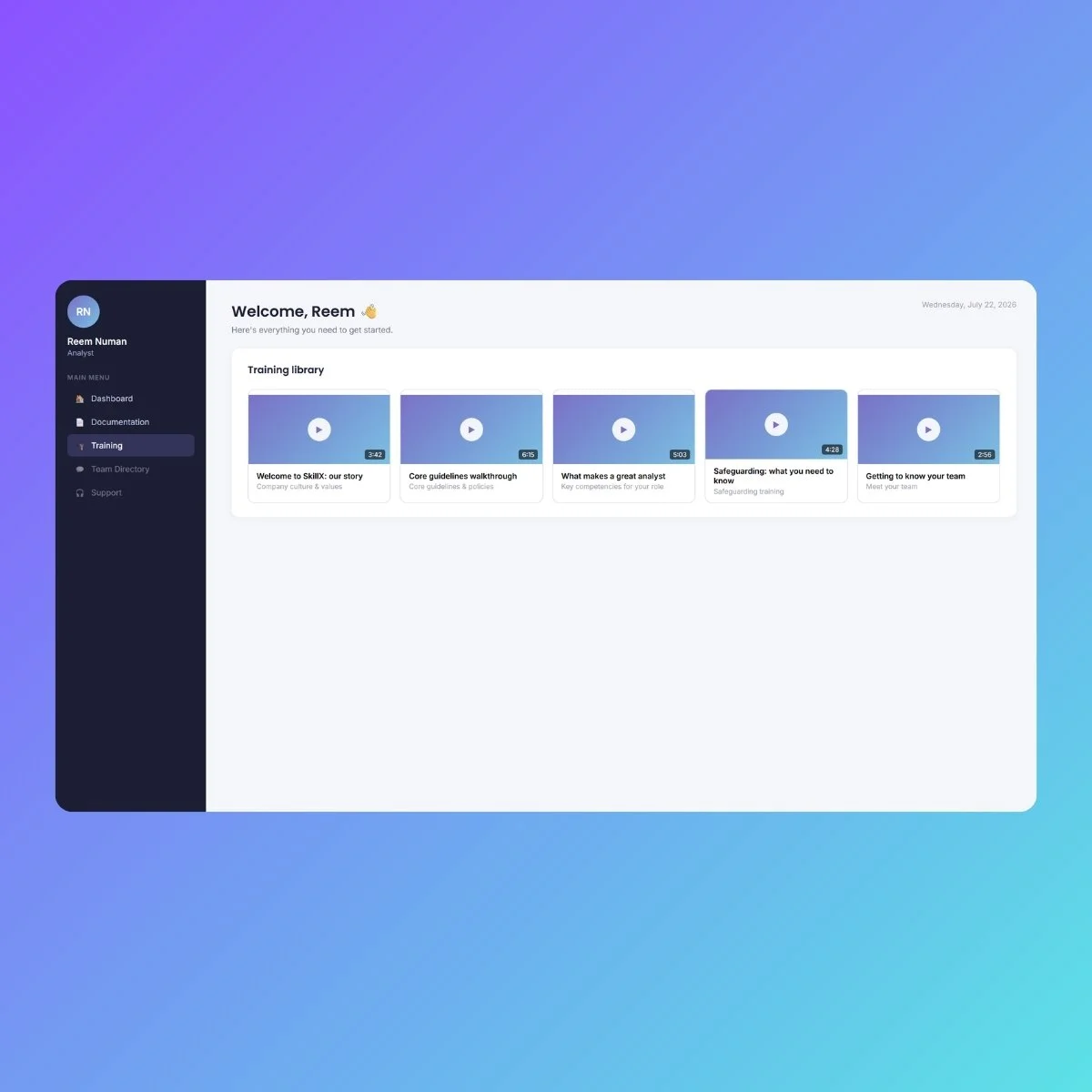
Rather than a flat list of module names, the Training tab presents each piece of onboarding content as a video card, duration, thumbnail, title. It's a small choice, but it signals that training here is meant to be watched and absorbed, not just checked off.
A training library that stays visual
Built to actually be usable
2.1.1 · Keyboard
Checklist items and tabs are fully operable without a mouse.
1.3.1 · Info and Relationships
Form labels are programmatically linked to their inputs.
3.3.2 · Labels or Instructions
Every form field is clearly labeled before input is required.
4.1.2 · Name, Role, Value
Custom checkboxes and tabs expose proper roles and state to screen reader.
2.4.7 · Focus Visible
Every interactive element has a clear, visible focus state.
4.1.3 · Status Messages
File uploads announce confirmation via a live region.